• 4.9/5.0
  • 118 Questions
  • Updated on: 12-Jun-2026
  • Mist AI Wireless - Specialist (JNCIS-MistAI-Wireless)
  • 1118+ Prepared
  • Valid Worldwide

Free JN0-452 Practice Test Questions | Know You're Ready for Mist AI Wireless - Specialist (JNCIS-MistAI-Wireless)


You are installing and booting up your first Juniper Mist AP at your site. By default, which two statements are correct in this scenario? (Choose two.)

A. The AP will attempt to connect to the Mist cloud using port 443.

B. The AP will send DHCP requests using the native VLAN.

C. The AP will send DHCP requests with a VLAN ID of 10.

D. The AP will attempt to connect to the Mist cloud using port 8080.

A.   The AP will attempt to connect to the Mist cloud using port 443.
B.   The AP will send DHCP requests using the native VLAN.

Explanation:

When a Juniper Mist AP boots up for the first time out of the box, its behavior follows a predictable default sequence. Understanding this initial connection process is important for successful deployment.

Why A is correct: The AP needs to establish a secure connection to the Mist cloud for management and configuration. To do this, it initiates an outbound connection on TCP port 443 (HTTPS) . This is the standard port for encrypted web traffic, and it must be open on your firewall for the AP to communicate with cloud services like ep-terminator.mistsys.net .

Why B is correct:By default, a new, unconfigured Mist AP expects its uplink switch port to be configured as a trunk. It will send its initial DHCP request on the native VLAN, which is typically VLAN 1 . This behavior is by design, as the AP assumes the native VLAN will provide it with a path to the internet and the Mist cloud .

Why other options are incorrect:

C. The AP will send DHCP requests with a VLAN ID of 10:
This is false. An AP only sends a tagged DHCP request (with a specific VLAN ID like 10) if it has been explicitly configured to do so, either individually or via a device profile . Out of the box, it uses the untagged native VLAN.

D. The AP will attempt to connect to the Mist cloud using port 8080: >
This is also false. Port 8080 is an alternate HTTP port and is not used by Mist APs for cloud connectivity. While 8080 is sometimes used for local proxy services, the primary, non-configurable path to the cloud is over TCP port 443 .

References

Juniper Mist Documentation - Configure IP Settings: "When powered on for the first time, Juniper Mist APs send a DHCP request through the Eth0 interface. The switch port connected to the AP must be a trunked port, or be configured with a native VLAN where VLAN ID is 1" .

Mist Documentation - Check cloud connectivity: "To ensure your Access Point has access to the Mist cloud, please make sure firewalls aren’t blocking port 443" .

At which signal strength level range will an extra AP placed on the same channel cause cochannel contention?

A. -45 dBm to -65 dBm

B. -55 dBm to -80 dBm

C. -25 dBm to -80 dBm

D. -65 dBm to -85 dBm

D.   -65 dBm to -85 dBm

Explanation:

Co-channel contention occurs when multiple access points (APs) operate on the same frequency channel, forcing them to share airtime and defer to each other's transmissions. The critical factor is the CCA-SD (Clear Channel Assessment - Signal Detect) threshold, which determines at what signal level a radio detects another transmission as "busy."

Why D is correct: Modern 802.11 radios trigger CCA-SD when they detect a signal just 4 dB above the noise floor . With a typical noise floor around -90 dBm to -95 dBm, this means co-channel contention begins as low as -85 dBm to -90 dBm. The range -65 dBm to -85 dBm represents the "danger zone" where:

At -65 dBm: Strong enough to cause significant contention (the radio will definitely defer)
At -85 dBm: Near the CCA-SD threshold where even weak distant APs cause deferral

This aligns with industry guidance that recommends looking for co-channel interferers when signals fall within this range . In this zone, APs on the same channel will detect each other's preambles and back off, reducing overall throughput even though clients may still have adequate signal strength .

Why other options are incorrect:

A. -45 dBm to -65 dBm
– At these very strong levels, co-channel contention is severe, but this range misses the lower boundary where contention begins. The question asks where an extra AP "will cause" contention, which starts at the CCA-SD threshold (~ -85 dBm), not at -65 dBm.

B. -55 dBm to -80 dBm
– While partially correct, this range excludes the critical -80 dBm to -85 dBm zone where contention begins.

C. -25 dBm to -80 dBm
– The upper end (-25 dBm) is extremely strong and unrealistic for practical WLAN deployment, but more importantly, this range misses the -80 dBm to -85 dBm boundary where contention initiates.

References:

*802.11 Standard – CCA-SD*: "Radios detect 802.11 preambles at levels just 4 dB above the noise floor"

Industry Best Practices: "Look for co-channel interference at signal strengths between -35 dBm and -85 dBm"

You are troubleshooting a client that has had intermittent connectivity problems. Using Marvis to troubleshoot, you see that AP uptime is negatively affecting the client. When inspecting Marvis' troubleshooting response, which category should you select to see when the AP went offline?

A. Location

B. Correlation

C. AP Metrics

D. Classifiers

C.   AP Metrics

Explanation:

When you use Marvis to troubleshoot a client and the analysis indicates that "AP uptime" is negatively affecting that client, you need to view the access point's operational history to see when it went offline. The AP Metrics category is specifically designed for this purpose.

When you select AP Metrics within Marvis' troubleshooting response, you gain access to the AP's historical operational data. This view typically includes key performance indicators such as:

Uptime statistics: Exactly when the AP was last rebooted or lost power.
CPU and memory utilization.
Radio statistics and channel utilization.

If the AP had a power interruption or a software crash, its uptime counter resets. Marvis correlates this metric with the client's connection failures. If the client's "bad events" happen simultaneously with the AP's uptime resetting (meaning the AP rebooted), Marvis can determine that the AP's stability is the root cause of the client's problem.

Why other options are incorrect:

A. Location
– This category provides physical location data, floor plans, and RF heatmaps. It helps with coverage issues but does not contain AP uptime or reboot history.

B. Correlation
– This view shows the "Scope of Impact" . It identifies which devices (APs, WLANs, or other clients) share the same problem pattern, but it does not show the AP's internal metric history like uptime.

D. Classifiers
– This section categorizes the type of failure (e.g., Authorization, DHCP, Association). While "AP Uptime" might be named as a specific classifier in some contexts, the question asks for the category selected to see when the AP went offline (i.e., to view the timeline/metrics), not just the failure label.

References:

Marvis Troubleshooting Guide: "Clicking on a particular failure reveals details about that failure. 'Failure Timeline' & 'Insights' provides redirection to the relevant pages".

JNCIS-MistAI Exam Practice: Recognizes "AP Metrics" as the correct category for viewing AP uptime impact on clients.

What does Mist qualify as a rogue AP?

A. An unauthorized AP on your wired network

B. A neighbor AP

C. An AP close to your network as measured by RSSI

D. A honeypot AP

A.   An unauthorized AP on your wired network

Explanation:

According to official Juniper Mist documentation, a Rogue AP is specifically defined as any access point that meets two criteria:

It is not claimed onto your Organization (unauthorized)
It is detected as connected on the same wired network as your legitimate APs

This definition distinguishes rogue APs from other types of unwanted APs based on the key factor: physical connection to your wired infrastructure. A rogue AP represents a direct security risk because it provides an entry point into your internal LAN. The intent can be malicious (someone trying to gain illicit access) or benign (an employee creating their own hotspot to improve coverage), but either way, it is a security concern.

Rogue AP detection is disabled by default in Mist and must be manually enabled under Site Settings. Once enabled, you can set an RSSI threshold (default -80 dBm) for detection.

Why other options are incorrect:

B. A neighbor AP
– Neighbor APs are detected in the vicinity but are not connected to your wired network. These are simply other wireless networks operating nearby that your Mist APs can hear. While they may cause interference, they do not pose the same security risk as a rogue AP.

C. An AP close to your network as measured by RSSI
– Mist does not classify APs as rogue based on signal strength alone. You can configure an RSSI threshold to filter detection results, but proximity/RSSI is not the defining characteristic of a rogue AP.

D. A honeypot AP
– A honeypot (also known as an Evil Twin) is an unauthorized AP that advertises your SSID to trick users into connecting and capturing their credentials. While also a security threat, Mist distinguishes between rogues (connected to your wired network) and honeypots (spoofing your SSID over the air). Honeypot detection is enabled by default—the opposite of rogue detection.

References:

Mist Documentation – Rogue, Neighbor and Honeypot APs: "Rogue APs are defined as any AP not claimed onto your Organization, but detected as connected on the same wired network"

Juniper Networks Documentation: "Rogue APs are any wireless APs installed on your wired network without authorization"

You must define VLANs as untagged, tagged, or using VLAN pooling. In this scenario, where would you accomplish this task in the Juniper Mist UI?

A. site settings

B. WLAN settings

C. organization settings

D. policy settings

B.   WLAN settings

Explanation:

In the Juniper Mist UI, the definition of how VLANs are handled for wireless clients—whether they are untagged (using the AP's native/management VLAN), tagged (assigned a specific VLAN ID), or part of a VLAN Pool (distributing clients across multiple VLANs to reduce broadcast domain size)—is configured within the WLAN settings.

When you create or edit a WLAN, the "VLAN" section allows you to specify these behaviors. This ensures that any client connecting to that specific SSID is mapped to the correct network segment.

Why Other Options are Incorrect

Option A: Site settings are used to define site-wide parameters like time zones, AP local status pages, or radio management (RRM) defaults. While you can define a "Management VLAN" here, the specific mapping for user traffic happens at the WLAN level.

Option C: Organization settingsdeal with high-level administrative tasks, such as SSO, API keys, and global object definitions. While you can create WLAN Templates at the Org level, the actual "untagged/tagged/pooling" logic is still a component of the WLAN object settings within those templates.

Option D: Policy settings (such as WXLAN policies) are used to permit or deny traffic based on user roles or resources. They do not define the primary VLAN tagging or pooling mechanism for the SSID itself.

Reference

Juniper Mist Documentation: WLAN CLI & Config — "VLAN Tagging and Pooling."

JNCIS-MistAI Exam Objectives: Section 3 (WLAN Configurations) — Configuring SSIDs and VLAN mapping.

According to the 802.11 standard, how wide are 2.4 GHz band OFDM channels?

A. 5 MHz

B. 22 MHz

C. 20 MHz

D. 3 MHz

C.   20 MHz

Explanation:

The 802.11 standard specifies that for Orthogonal Frequency Division Multiplexing (OFDM) operation in the 2.4 GHz band, the channel width is 20 MHz.

This specification applies to 802.11g and 802.11n (when operating in 20 MHz mode) in the 2.4 GHz frequency range. The 20 MHz channel consists of 64 subcarriers, with 48 used for data and 4 used as pilots for synchronization.

It is important to distinguish OFDM from the legacy Direct Sequence Spread Spectrum (DSSS) modulation used in original 802.11b. DSSS requires a 22 MHz channel width. The question specifically asks about OFDM channels, which are defined as 20 MHz.

Why other options are incorrect:

A. 5 MHz – This channel width applies to specific configurations in the 5 GHz band for certain 802.11 OFDM modes (e.g., half-clocking), not to standard 2.4 GHz OFDM operation.

B. 22 MHz – This is the channel width for DSSS modulation (802.11b), not for OFDM.

D. 3 MHz – This is not a defined channel width in any 802.11 standard for 2.4 GHz operation.

References:
*IEEE 802.11-2012 Standard, Section 18*: OFDM PHY specifies 20 MHz bandwidth
Wi-Fi Standards Table: 802.11g and 802.11n (2.4 GHz) list 20 MHz channel width
2.4 GHz Channel Allocation: OFDM requires 20 MHz channel spacing

What do 802.11 stations perform to help avoid collisions on the WLAN medium?

A. 802.11 stations detect collisions and set a back-off timer.

B. Listen to verify that the medium is free before transmitting.

C. Stations only transmit when polled by the access point.

D. Transmit on a fixed schedule.

B.   Listen to verify that the medium is free before transmitting.

Explanation:

802.11 stations use a mechanism called Carrier Sense Multiple Access with Collision Avoidance (CSMA/CA) . Unlike wired Ethernet, which can detect collisions after they happen (CSMA/CD), Wi-Fi radios cannot transmit and listen at the same time because they are half-duplex. Therefore, they must avoid collisions before they occur.

The primary method for avoiding collisions is Clear Channel Assessment (CCA) . Before a station transmits, it "listens" (senses) the wireless medium for energy. If energy is present (indicating another station is transmitting), the station defers and waits a random back-off period before trying again. Only after verifying the medium is free will the station transmit.

Why other options are incorrect:

A. 802.11 stations detect collisions and set a back-off timer.
— This is incorrect because 802.11 stations cannot detect collisions reliably (they cannot listen while transmitting). This describes CSMA/CD (used in Ethernet), not CSMA/CA (used in Wi-Fi).

C. Stations only transmit when polled by the access point.
— This describes polling (used in some legacy or point-to-point systems), not standard Wi-Fi. In infrastructure mode, stations contend for the medium; the AP does not continuously poll each station.

D. Transmit on a fixed schedule.
— This is Time Division Multiple Access (TDMA) , which is not part of standard 802.11 DCF (Distributed Coordination Function). Wi-Fi uses random back-off, not fixed schedules.

References:

*IEEE 802.11-2020 Standard*: "CSMA/CA requires a station to sense the medium before transmitting; transmit only if medium is idle."

Mist AI Documentation – RF Fundamentals: "Clear Channel Assessment (CCA) determines if the wireless medium is busy. Stations defer transmission if energy above threshold is detected."

You are asked to deploy a new Juniper Mist Edge VM for your customer.
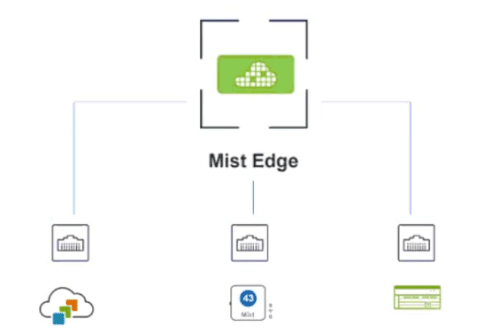
Referring to the exhibit, which three interfaces are required to accomplish this task? (Choose three.)

A. out-of-band

B. downstream

C. proxy

D. upstream

E. revenue

A.   out-of-band
B.   downstream
D.   upstream

Explanation:

Based on the official Juniper Mist and Juniper Networks documentation for Virtual Mist Edge deployment, the VM requires three virtual network interfaces to function correctly .

Why A, B, and D are correct:

A. Out-of-band (OOBM)
– This is the management interface. It is required for the Mist Edge VM to communicate with the Mist Cloud for configuration, telemetry, and statistics. It also handles the RADIUS proxy service (RadSec) on TCP port 2083 and connects to the EP-terminator service on TCP port 443 .

B. Downstream
– This is the Tunnel IP interface. It terminates the L2TPv3 or IPsec tunnels coming from the Mist Access Points (APs). The downstream port receives encapsulated traffic from the APs. It must allow incoming UDP port 1701 (L2TPv3) or UDP ports 500/4500 (IPsec) .

D. Upstream
– This is the Data interface. It connects to the trusted wired network (core/aggregate switch). After the Mist Edge decapsulates the tunneled traffic from the AP, it forwards the client traffic out the upstream port. This port is typically configured as a trunk carrying all the user VLANs mapped to the WLANs .

Why the other options are incorrect:

C. Proxy
– This is not a required interface type for the Virtual Mist Edge. While the Mist Edge VM can function as an Auth Proxy, this functionality is delivered over the OOBM interface, not a dedicated "Proxy" interface .

E. Revenue
– This is not a valid networking interface type in the context of Juniper Mist Edge deployment. It appears to be a distractor term.

References

Mist Documentation - Virtual Mist Edge: "Mist Edge requires the following three virtual NIC interfaces: Out of Band Management (OOBM), Tunnel IP, Upstream"

Juniper Networks Documentation - Getting Started: "Mist Port (Out-of-Band Management Port), Tunnel Port, Data Port"

Page 3 out of 15 Pages